Why Remote Captioning Services Make Your Events More Accurate
You can absolutely rely on remote captioning services instead of hiring onsite captionists—as long as you know how to set up Crop & Key captions correctly. With the right setup, you’ll achieve broadcast-quality results for any virtual event, webinar, or conference.
Table of Contents
Picture this: You’re about to stream your next big event.
You’ve got the cameras ready, the soundboard checked, and the meeting link sent. Everything’s running smoothly—until someone in the chat says:
“The auto-captions aren’t accurate. I can’t follow the discussion.”
You’ve probably seen this before. AI-generated captions can’t keep up with acronyms, product names, or technical jargon, often producing downright jibberish. That’s when you realize it’s time to choose a CART captioning service—a real human captionist who can deliver near-perfect accuracy.
Provide your captionist with the essentials—event timing, platform, speakers, and any technical terms they should prepare for
Why Remote Captioning Services Make Your Events More Accurate
Remote captioning gives you accuracy, flexibility, and consistency that AI alone can’t match.
A professional human captionist listens in real time, understands context, catches technical terms, and avoids the mistakes AI often makes with accents, jargon, or fast speakers.
Moreover, you can support webinars, online meetings, hybrid events, and conferences without complicated onsite setups.
With a human captionist behind your captions, your viewers get reliable and readable text.
There is no guesswork, no garbled sentences, and no misinterpretations. It’s the simplest way to deliver accessible, professional captions across every platform.
Optimizing Your Setup for Flawless Human Captioning
Professional human oversight is always the missing link to provide contextual judgment and correct errors in machine-made captions.
That’s where preparation makes all the difference. When you understand how to set up your remote captioning system correctly, you help human captionists work faster, reduce machine errors, and ensure your audience always receives clear, accurate text.
By the end of this guide, you’ll know how to set up a remote Crop & Key captioning system, feedopen captions directly into your video, and make your virtual or hybrid events accessible, professional, and legally compliant.
Crop & Key setup displays live captions directly in the video feed, similar to broadcast-style captioning
What is a Remote Crop & Key Event?
A Crop & Key setup lets you display live captions directly in your video feed—the same way you see them on broadcast TV. It’s simple:
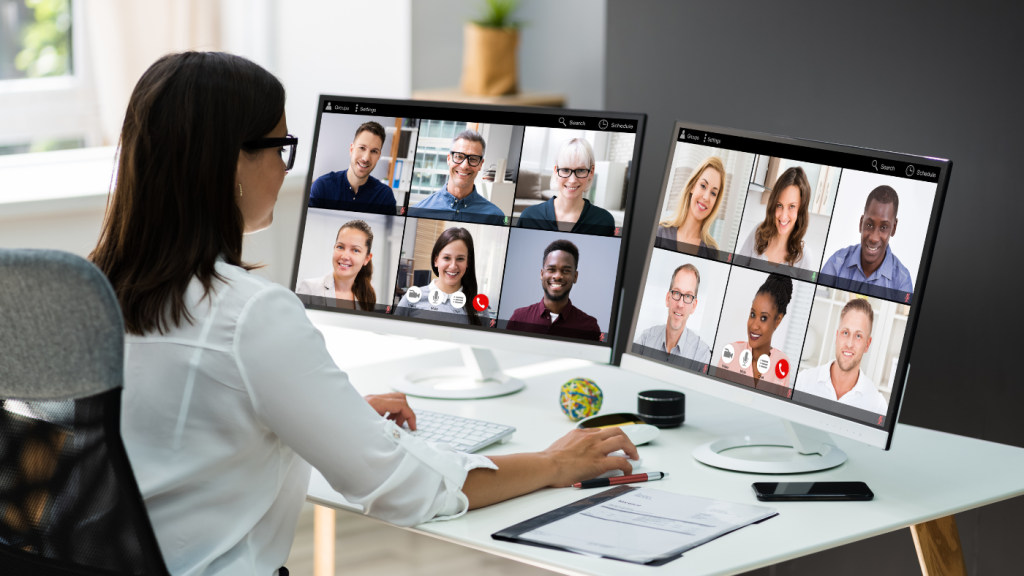
Your captionist listens remotely via your meeting platform: Zoom, Webex, or Teams.
You display their live captions from a StreamText (or similar) link on your screen.
You “crop” the captions and “key” them into the final video output.
That’s all it takes to produce a clean, accessible open captioning layer for any online meeting, webinar, or virtual event.
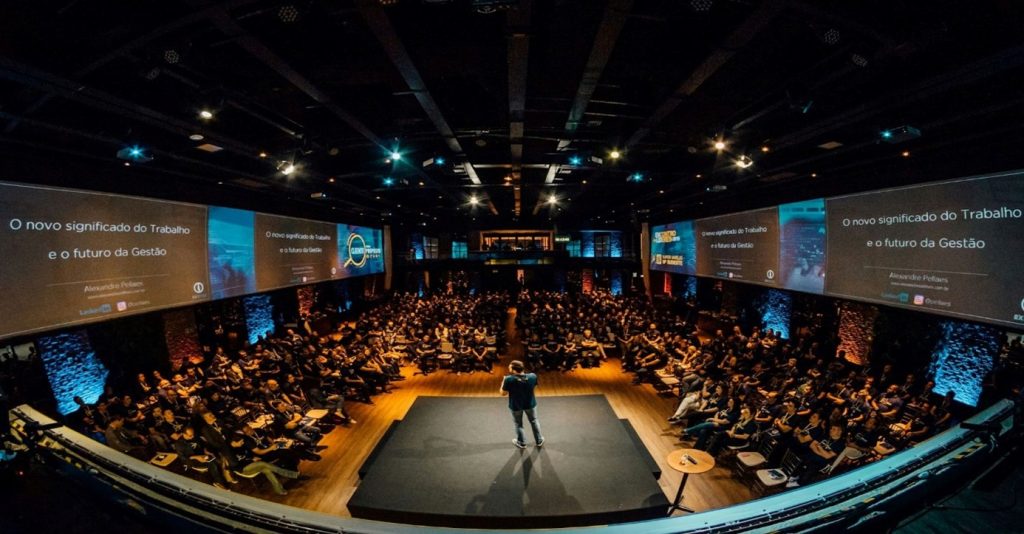
During live webinars and hybrid meetings, open captions stay visible for everyone—making sure no word is missed
Why You’ll Love Open Captions
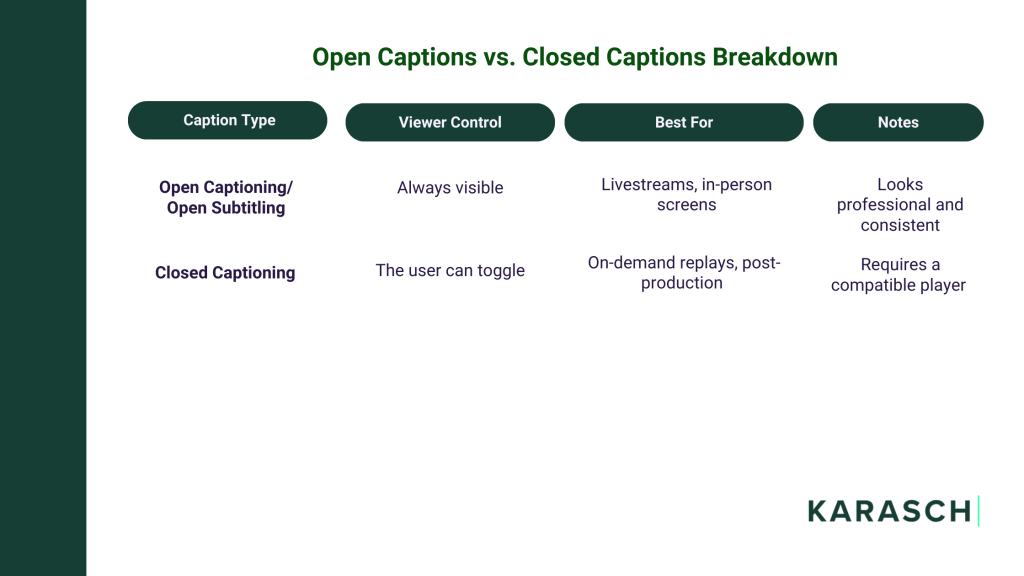
Open captions are visible to everyone—no settings, no toggling, no confusion. They’re ideal for livestreams, webinars, and virtual events where viewers join from different devices or platforms.
Hardwired Network Connection (Ethernet using a CAT5/CAT5e/CAT6 cable)
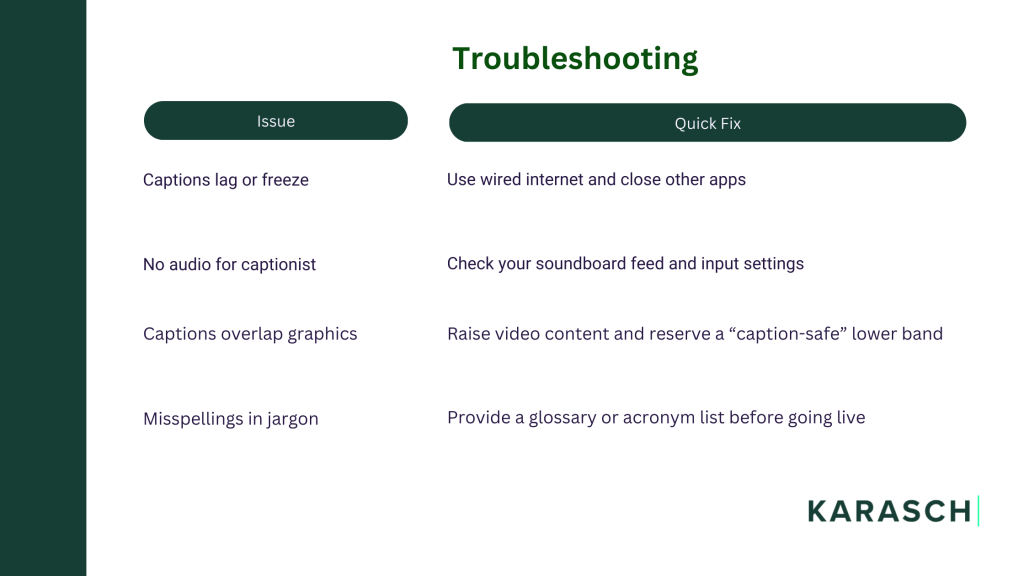
We recommend that you do not use WiFi as that can result in a choppy stream, depending on interference in your chosen venue.
If you use a laptop that does not have an Ethernet port, you will also need a USB Ethernet adapter
Audio Mixer Sound Board
Technically, if you only had a single audio source, like a single microphone, a sound board would not be necessary. We find that this is almost never the case as multiple microphones or audio sources are often involved.
Adapter Cable from the soundboard to the computer
This depends on your soundboard. The most common adapter needed is either a 6.35mm jack to a 3.5mm jack or an XLR to a 3.5mm jack.
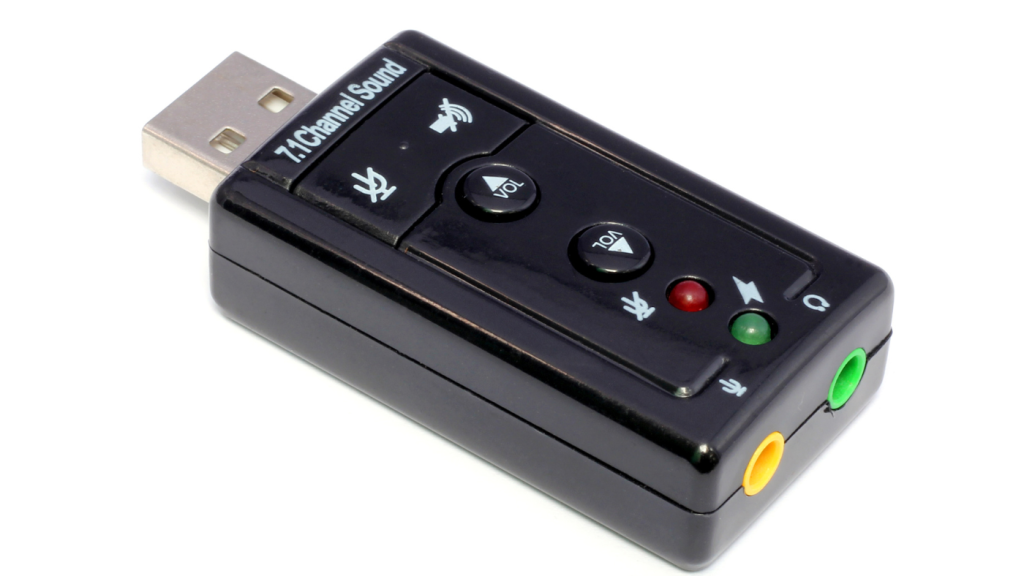
If you use a laptop that does not have a microphone jack, you will need a USB to audio jack adapter (also known as a USB sound card)
Video switcher that can crop and key the final output video
Adapter Cable from the computer to the video switcher
With this basic setup in place, you’ll have everything you need to deliver clear, reliable captions throughout your event.
A USB sound card is needed when your laptop has no microphone port, ensuring clean audio input for captioning
Step-by-Step: How to Set Up Remote Captioning Using Crop & Key
Let’s walk through it together.
1. Schedule your event and book the captionist
Send your meeting link and event details to your captioning provider—like [email protected]. If you don’t have a link yet, your captioning service can create a Zoom meeting link for you.
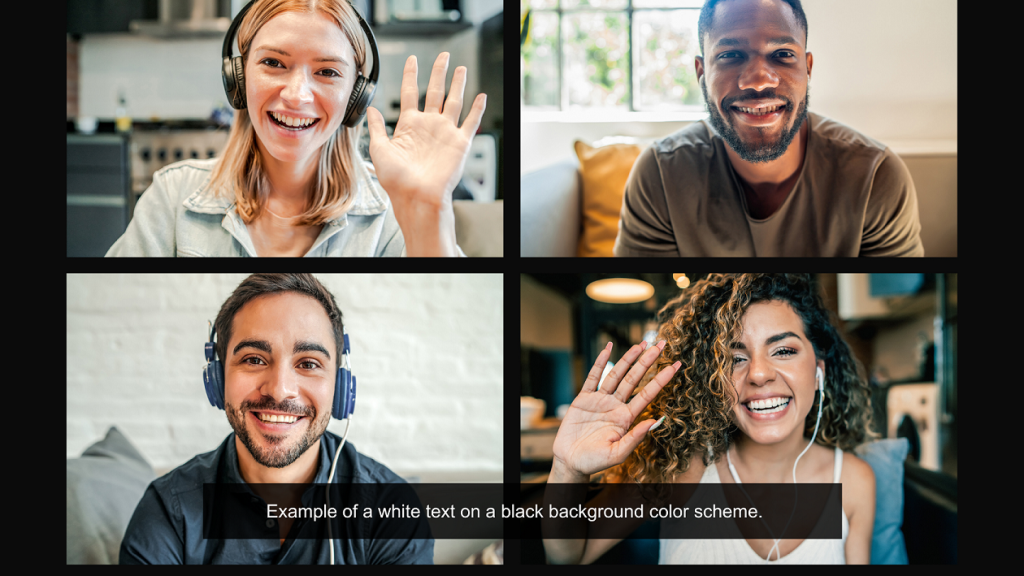
Keep readability in mind. A simple white-on-black or yellow-on-black scheme works best.
Use white or yellow text on a black background for remote live captioning
5. Crop the caption window
Resize the browser window so it shows no more than two lines of text (about 32 characters per line).
You want those two lines to sit neatly in the lower third of the screen—like traditional broadcast captions.
6. Key the captions into your video
Use your video switcherto add the caption window as a layer. Then, crop and key that layer so it overlays neatly on your main video feed.
That’s it—you now have real-time open captionson your livestream!
Common Mistakes to Avoid for a Smooth Broadcast
Many broadcast hiccups come from small but avoidable mistakes.
For example, covering your captions with lower-third graphics or banners, relying on Wi-Fi that inevitably drops at the worst moment, or forgetting to send your captionist the speaker list and expert glossary until minutes before you go live are situations you can avoid by careful event pre-planning.
Ensure the lower-third graphic placement on the video doesn't interfere with the captions
Another common slip is skipping the pre-show preview, only to discover too late that the captions blend into the background or lag behind the audio.
And, perhaps most overlooked, is forgetting that captions serve a wide range of viewers. —including Deaf and Hard of Hearing attendees, ESL participants, and anyone joining from a noisy environment.
Coordinate with your remote captioning provider to ensure all runs without unwanted delays, making clear, accessible open captions essential for everyone.
When comparing the best live captioning providers, look for:
Professional human captionists (not AI)
Real-time accuracy of 98%+
Pre-event prep with your team
Reliable streaming and tech support during the show
Post-event transcripts or open subtitling options
These are the reasons event producers and universities choose CART captioning services like Karasch for virtual events, online meetings, and live webinars.
The video shows how thoughtful planning and multilingual captioning can significantly improve clarity and engagement for diverse and ESL audiences:
Your Next Step
If you’re hosting hybrid events, webinars, or live broadcasts, integrating CART captioning via a Crop & Key setup makes your stream accessible, professional, and fully ADA-compliant.
Start small—test your setup, refine your layout, and you’ll have a repeatable system that guarantees clear communication for every attendee.
When you’re ready to go live, choose a CART captioning service that provides real-time human accuracy, reliable support, and true accessibility for everyone watching.